This page may contain affiliate links. If you click and make a purchase through these links, I may earn a small commission at no additional cost to you. Click here to see my full disclosure policy.

Thursday, May 5, 2011

The Elephant Mother


Elephants. They have been on my mind a lot lately. The funny thing is that I didn't realize that I have a thing for elephants until I started cutting out Lettering Delights' images. It all started with the Puns Intended elephant. At the time, that graphic set had only just been released as a Sneak Peak but I went all crazy making a ton of elephant cards anyway.


Never mind that when I was five, I decided that I shall be named after Bobo the Elephant. I still remember the look on my sister's face when her elementary teacher asked me for my name and I insisted that she called me Bobo the Elephant. I probably was also wearing my favorite "Six Million Dollar Man" t-shirt but I digress...


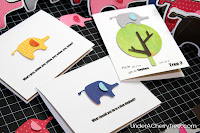
I adore the Lettering Delights elephants but the one from the Sweet Nothings SVG set seems to be the image that I turn to every time I want to cut one of these mammals out. This card was no exception. I had designed this card at the same time as I did for today's Joyslife Design Team project and although the idea is similar, the execution is entirely different.


For starters, the layout of this card is unlike most of my other shaped cards. I did not weld a rectangle or square to the shadow of any of the main images to form a straight edge as it was not necessary in this case. You may also notice that I added more embellishments than I normally would for my cards and I did not print or use any stamps for the sentiment.


There are a lot of dimensions on this card- I adhered almost every cutout with foam tape! I used scrapNfonts' Simon Says font for the word "Mother". The elephants are from Lettering Delights' Sweet Nothings SVG set while the papers are from Echo Park's For the Record. All the cuts were made by my Gazelle electonic cutter and the Make-the-Cut program.

Here are my other projects where I used a Lettering Delights elephant. Click on the image to go to the corresponding post. Enjoy!



for Mother


For today's project, I made this super cute shaped card with my Gazelle cutter! Don't know what a Gazelle is? Read all about it here where I have reviews of this machine from the other owners.


To make today's card, I used Make-the-Cut to import the elephant from Lettering Delights' Sweet Nothings SVG set. I mirrored the image so that it faces the left. Next I duplicated the elephant and resized it so that it is smaller than the first elephant.

The card base is made by welding 2 shadow layers together. The little tag was made by simplifying an image from Lettering Delights' Love Labels SVG set. I used the "Mother" stamp from Joy's Mother and Daughter stamp set, and wrote the "for" with a black pen. To finish the card, I wrapped and tied a piece of twine around the rounded rectangle layer on the card.


Wednesday, May 4, 2011

New LD SVG: Mother's Day Album + FREE American Pride Super Bundle! (revised added more!)

OMG! Look what I just stumbled upon! A new Lettering Delights SVG and....


Click here or the image above to grab your Lettering Delights files now.


Edit to add one more free set. Thanks, Becki!


Click here to add the BBQ Bash Graphic Set to your cart. Check out and pay $0!


Build-A-Cupcake! How-tos.

This is the second part to my post from yesterday on making note cards with the Lettering Delights Build-A-Cupcake graphic set. 


I used Make-the-Cut to Pixel Trace the graphic onto the virtual mat. The following picture shows the thresholds that I applied. Note that there are 2 threshold values on some of the graphic. This is usually because the full image cannot be brought  into the mat with one trace. Similar to this tutorial that I had posted back in January, some images need to have more than one trace so that the whole image can be traced.
Once you have traced the top and bottom parts, make a copy of both and use "Blackout" to form the shadow layer for those parts. To form the base layers, make another copy of the top and bottom, position them so that they overlap and Weld both parts together. Once again, to get the shadow copy of that, just use Copy, Paste-in-Place, Blackout.


The following picture illustrates how the layers should basically look like. Depending on how you mix and match the top and bottom, the layers may look different, but the concept is essentially the same for all the cupcakes in this set.


To form the card base, just apply the same method as I have demonstrated in my Shaped Card Tutorial. Use CTRL+H to create two shadow layers, mirror one of them and weld to the other.


Here are some answers to the questions that were commented under my cupcake post yesterday:


This is the tutorial. :-) I had planned on a video tutorial for this but I spent too much time on this post already. I'm having so much fun with these cupcakes I still may post a video. We'll see if the kids let me do it later. ;-)


I'm still waiting for my Lynx to come so for this project I used my Gazelle. I probably would have been happier using my Silhouette to make these but because I was making a lot of note cards, it was just faster to use the Gazelle's 12" x 12" mat.


An image is made up of many dots (or pixels). To Pixel Trace basically means, to connect those dots, thus forming a path and making an outline for the image. I don't use SCAL but I know that there is a similar Trace feature in SCAL which may be known as a different name. Does anyone here knows what the trace tool in SCAL is called?


I used my colored cardstock to make the cards that I've shown here. So basically I laid them on the mat and cut. The beauty of this set is that it can also be used for print-and-cut and would probably be an easy process since the images here can be easily traced.


There are several coordinating sets in the Cupcake collection including the DB Hello Cupcake doodlebat. I prefer the look of the Build-A-Cupcake graphic set but you can definitely make cupcake note cards with the DB Hello Cupcake doodlebat too although the latter will probably give a different look.

Click here to get your Build-A-Cupcake graphic set.


Tuesday, May 3, 2011

Build-A-Cupcake! Cupcake Note Cards.


Ever feel like doing something just because? Lately I've been so preoccupied with playing with all the new Lettering Delights SVGs that I never got around to doing something that I've long wanted to do - make cupcakes. Or more specifically, build cupcakes. ;-)


I love the Build-A-Cupcake Graphic Set. It's so versatile! Mix and match the top and bottom halves to get the cupcake your heart desires. All it takes is Make-the-Cut, some Pixel Tracing, and lots of Join and Delete.


I made a stack of note cards with these cupcakes but now that I have saved my cupcakes as .MTC files, I can make any cupcake cards any time in any size. That's the beauty of Make-the-Cut! The program does not limit your creativity (unlike a certain company's *cough* PC *cough* program).


The cupcakes were so fun to make, I couldn't just stop at one. Once I "built" a cupcake, I couldn't stop! I think I made 20 in one afternoon but who's counting? I was having too much fun!


I made my notecards at 4" tall or less and in my next post, I will show you how the layers for these cupcakes look like in Make-the-Cut.


In the meantime, feast your eyes on my cupcakes or better still, go grab your own Build-A-Cupcake graphic set and make some cupcakes. ;-)

WINNER! Bento Box Set.

Thanks everyone for playing in my Bento Box Set Giveaway. Many of you have asked where you can buy similar bento boxes and accessories. If you live near a Daiso or Ichibankan store, you can find a lot of bento supplies in store. There are also many online stores, including Amazon, that sell bento supplies. Just do a google search on "bento supplies" and you will find many of them.  :-)

And now, back to the winner of the Bento Lunch Set. The winner has been picked by Random.org and it is....

Congratulations, KSD Creations! I will emailing you for your mailing address shortly.

Thanks for playing, everyone!


Monday, May 2, 2011