
Dear Ashley,
It's so good to hear from you! {{{HUGSSS}}} I'm so happy that you managed to get your MTC before it stopped supporting the Cricut! Have you used the program and the cutter lately? How are your 3 Princesses? Did you let them play with your Expression? That might get them out of your hair sometimes, you know, you busy mom! :-)
Anyway, I know that you bought the Cricut just for the occasional school project (Hello, Science Fair!) and for the kids' birthday parties. You don't use your cutter very much at all so why are you asking me what I think of the Gazelle? Are you looking to replace your E? I'm still on the hunt for a cutter to replace my E. I love the Silhouette SD but it cannot cut wider than 8” so I bought the Gazelle. I have read so many good things about it and I was really hoping that my search for a cutter would end with it. Here, let me start from the beginning:

I ordered the Gazelle on March 18 while it was on sale and supposedly still in stock. UPS delivered it on April 1. I was so thrilled when it came! Too bad I had to wait until Spring Break was over before I could open the box. These pictures were taken the day that I unboxed it. Everything looked good except that I was a little bothered by how little care was taken to pack the extra accessories that I ordered. You know, I even wrote a blog post about the unboxing. You can read all about it here when you get a break from the kids.
 |
| This is how my accessories were packed. :( |
 |
| No bubble wrap? |
I know what you are thinking....why in the world would I order a pink machine when I really don't like the color? Well, because I actually believed that I could see past the pink if the cutter can cut as well as some people say. In fact, the pink did not bother me half as much as the black marks that the cutter leaves on my white table but I overcame that by putting the cutter on a black self-healing cutting mat. Oh, and I have to tell you that it also came with a funky looking USB cable that did not match the cutter! Seriously, how hard is it to include a cable that matches the cutter? Well, you know me, I have to have everything look matchy-matchy so I replaced the USB cable with the one that came with the Silhouette so that everything now looks nice. :-D
 | |
| Black skid marks made by the Gazelle |

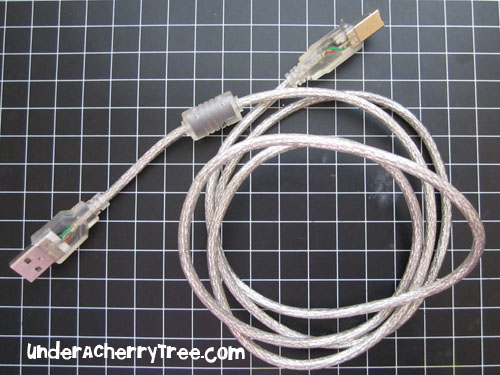 |
| Funky-looking USB cable |
The Gazelle comes with its own cutting software called Funtime. To use Funtime, the dongle must be plugged into the computer. A dongle is a security key that looks like a USB stick. Isn’t that a funny word? “Dong –gal”. I think my kids can have a field day making up silly poems with that word! LOL! Anyway, I'm supposed to keep this Dongle thing in a safe place because without it, I can't use the Funtime program. I have to stick it into my laptop EVERY time I start Funtime. The trouble is, I only have 2 USB ports on my laptop. One is already used to connect to the Gazelle so that if I have to use the other USB port to stick the dongle, how am I supposed to connect my laptop to my Canon Pixma MP250 printer? I'm out of USB ports! I guess if I have to use Funtime for print-and-cut projects I will have to buy a new wireless printer or get myself a new computer that has more than 2 USB ports. In other words, if I want to print-and-cut with the Gazelle and Funtime, I will have to spend more money to buy a new computer or wireless printer to cut with the Gazelle. Or don’t ever Print-and-Cut with Funtime.
 |
| Dongle |
I pondered about that problem for a while. I was following the instruction manual that came with the machine and was under the impression that the only way to set up the machine for cutting was to install Funtime. I was troubled because I really didn’t want to buy a new computer or wireless printer just so that I can print-and-cut with my new cutter. Then it hit me! The whole point of getting a new cutter was to use Make-the-Cut. I don't have to install Funtime and stick the dongle to use the Gazelle! DOH!! So I uninstalled Funtime and downloaded and installed the Gazelle driver from within Make-the-Cut.
If you want to see how I installed the driver, you can read all it by clicking here.

So now that I have installed Make-the-Cut, I was REALLY excited because I was finally going to make my first cut with my brand new Gazelle. Woohoo! I placed my Michaels’ cardstock on the Gazelle cutting mat and tried to load it into the cutter. It was tricky in the beginning because the way the mat loads is very different from what I am used to. With both the Cricut and the Silhouette, I load the mat by placing the edge at the rollers and once I press on the Load(Cricut) or Enter(Silhouette) button, the cutter will pull the mat in and stop automatically at the blade starting point (a.k.a origin). The Gazelle does not do that. When you load the mat you have to first make sure that the light above the Online/Offline button is ON and then you have to feed the mat by holding down on the Feed button until the blade is over the bottom right corner of the mat. The origin is where the blade is when you stop pressing down on the Feed button. The machine does not set the origin for you. By the way, the machine is also unable to move the blade sideways. If you need to move the blade sideways, you have to hold the blade carrier with your fingers and push it manually to the left or to the right. There are no buttons on the machine that moves the blade carrier sideways. So much for precision positioning!
 |
| Gazelle: Cutting at the setting I usually use of Force 1 Speed 1 Preset Blade 1 |
 |
| Silhouette SD: Cutting at the setting I usually use of Speed 5 Thickness 15 |
 |
| Both cutters were cutting this from MTC. |
Anyway, I managed to load the cardstock and mat, position my blade and prepare to cut with Make-the-Cut. As soon as I click "Start" on MTC, I literally JUMPED because this cutter is really loud. I used an Ipod Sound Meter application and it recorded the sound level as high as 81 decibel! If you usually use your cutter at night when the kids are in bed, be warned that this cutter can make quite a din. My Gazelle even makes a rattling sound as it cuts too. You can hear it from this video:
Okay I know that if you had watched the video, you must be laughing at me and my fat fingers. LOL! I was so embarrassed that I wasn’t able to open those drawers! To think that I wanted to show my favorite feature of the Gazelle only for it not to work! Oh, and I sounded so not-clever on the video too....believe it or not I'm *still* finding that Online/Offline button confusing! Seriously, I wished that the cutter has a Green light instead of the Red light. It would make so much more sense to have a Green light indicate the machine is Online and ready to cut instead of having a Red light to indicate that it is Offline. One more thing that I have to warn you about....what you see on the Bosskut website may not be what you get! There are two different models of machines out there and while I received a cutter with the all-grey buttons, some people received cutters with split-color buttons. Someone who works closely with BossKut posted on the MTC forum that they have no control over what their China factory sends over. That made me wonder about their standard of quality control. I can’t decide if I would be less confused if I had the split-color buttons or more confused? Regardless, I know that I wouldn’t have been happy if I had received a machine that looked different from what was advertised on the website. Here are pictures of both types of buttons. What do you think?
 |
| My Gazelle |
 |
| Nelda (MTC)'s Gazelle - thank you Nelda, for sharing your photo! |
 |
| Picture taken from BossKut.com |
So anyway, I have to say that this machine does cut nicely….WHEN I CAN GET IT TO CUT. It is frustrating because I will get a good cut one day and a bad cut next. Cutting with the Gazelle seems to involve a lot of trial and error - a situation that I thought I could avoid by ordering the Pre-set blade holder along with the cutter.

Remember my elephant card from the recent Blog Hop? I had to cut out over 30 elephants before I could pick out the 9 that I could actually use. It was supposed to be a simple and quick card but making it turned out to be one of the most frustrating experiences that I ever had. I had so much trouble getting the Gazelle to cut out the elephants cleanly! It was a wonder that I actually made the deadline for that hop.
 |
| Cosmo Cricket cardstock |
 |
| Printer paper. The hexadecagon on the bottom right cut out beautifully. |
And then there was the Beatitude Butterfly card. I tried cutting out 2 pop-up butterflies on printer paper with the settings of Force 1, Blade 1, and Speed 3 but the cuts were messy so while the paper and mat were still loaded in the Gazelle, I selected a Hexadecagon (16-side polygon) from MTC’s Basic Shapes and cut that with the same settings and the cut was perfect! I don’t understand why the cutter could make a mess of one shape so badly and yet cut another so perfectly on the same paper and with the same settings.
 |
| The Silhouette cut out the narrow sliver almost perfectly! |
I started to wonder if the problem might be the shape. After all I was trying to cut a narrow outline of the butterfly and that is pretty intricate. So I decided to cut the same butterfly on printer paper with the Silhouette and the cut was almost perfect on a first try!
If the Silhouette can cut the shape out so beautifully, what the heck was I doing wrong? Since somebody started a thread on the MTC forum with my name and the word "Gazelle" on the subject title, I decided to ask the smart people there.
 |
| Original Blade Holder on the left; Pre-set Blade Holder on the right. |
I posted photos of my bad butterfly and elephant cuts and asked if there is a cutting guide with recommended settings for the different types of paper for cutting with the Gazelle. You know, like a Gazelle version of the Cricut paper guide at Above Rubies Studio? Nobody responded with a cutting guide but I did get an interesting comment from a popular Gazelle instructor. She posted that I had set the blade too far out and that is why I was getting the bad cuts. The problem was I am using the Pre-Set Blade Holder and I can’t retract the blade any further.
My blade holder was already at the minimum setting of 1.
I was then advised by the same popular Gazelle instructor to watch this video tutorial to learn how to customize my Pre-set blade holder with a screwdriver and a Hex tool.

Initially I thought she was joking but when I replied that I didn’t understand why that was necessary, she said,
“the preset holder is preset...
BUT, there is a small variance in blades that sometimes needs to be customized.
once the preset holder is customized for that blade, that's it your done.”
BUT, there is a small variance in blades that sometimes needs to be customized.
once the preset holder is customized for that blade, that's it your done.”
I was flabbergasted! Obviously when a customer buys a Pre-set holder, it is because she wants it to be already pre-set for her so that she does not need to set it herself. Like the Cricut blade holder, there are 6 settings on the Gazelle Pre-set blade holder. Why isn't the variance adjusted before it was shipped to the customer? Also, if the customer is expected to customize the Pre-set blade holder herself, shouldn’t there be a note on the BossKut website to let the customer know to expect that? What happens if the customer attempts to follow the video tutorial to “fix” the variance and ends up breaking the hardware? Some Gazelle owners had actually tried to do that and damaged their blade holders in the process. They ended up buying a new blade holder, convinced that it is “operator error”.
 |
| Image from BossKut.com |
Speaking of operator error, trying to learn the Gazelle has made me realize how optimistic and determined some crafters can be. When they can’t get a good cut with their cutter, they are convinced that it is not the cutter’s fault but that it is “operator error”. Then they go out of the way to find the answer to their problem….they call customer service, they join the BossKut forum and look for answers there. They check youtube for video tutorials, break a bunch of blades, they google…..until they figure it out. Then they celebrate and post that their cutter is great and that they love it. As much as I am happy for them that they managed to get their cutters to work the way it is supposed to, I feel somewhat angry that they had to go through so many hoops and hurdles just to get to that point. Everyone who uses a Gazelle says that there is a learning curve.
Not one person who has ever used a Gazelle has said that it is easy to use.
 |
| A half-cut rounded triangle. |
Researching for a Gazelle review has led me to a huge can of worms. I have read about other people’s bad experiences with the cutter including USB connectivity troubles, the cutter cutting out only half the shape and scoring the other half of the same shape, confusing paper placement, blade variance, having to get an o-ring to rectify blade dragging problems, etc. Someone even mentioned on my post that
“It is absolutely normal to go through a blade or two with newbie mistakes on the gazelle.”
As though that is something that should be expected! When you buy any electronic goods for your home, do you expect to break a part or two before you get it to work the way it was advertised? Will you think that it is completely normal to get bad toasts with a brand new toaster? How many toasts should I throw away before I can bite into one? I would think that when I buy an electronic item, be it for the kitchen or for my craft room, that it should work the way it was advertised as soon as I take it out of the box. The Learning Curve? Isn’t that what the instruction manual is for? I thought that if we read and follow the instruction manual that comes with the item, we will be able to use the machine. Yet the instruction manual for the Gazelle does not address many of the issues. The photos are so tiny I can’t make out what they are showing. Some people mentioned the Gazelle forum. Nowhere on the Bosskut website did they mention that it is a requirement to use their forum before you can use the cutter. I never joined any Cricut or Silhouette forum before I could cut with those cutters. I just plugged it in and cut!
 |
| Words in the picture is illegible. |
Frankly, if I had known that it was going to be this much trouble cutting with the Gazelle, I would never have spent the $500 on it. I spent over 3 weeks trying to figure out how to get nice cuts with it and all that I got was a few cards, a ton of torn papers and a dirty white table. I would rather have spent that 3 weeks creating with my other cutters!
 | |
| Center border was a perfect cut but the circles above it were half-perfect and half-messy. |
I started on my series of reviews because no one was doing this and I thought that it would be helpful for the crafters on the hunt for a cutter to find out more about the non-Provo Craft machines through my own personal experiences. I had promised my audience that I would be honest and transparent. I don’t know what to do, Ashley. How do I tell my readers what I really feel about the Gazelle? I started to write my final review the other day but I struggled with the words to say. People don’t seem to want to hear my negative experiences. Every time I post about a bad cut the Gazelle made, I feel animosity from some of the Gazelle users. Some people would post that they love their machines and I would find out later that they have just recently ordered and will not even get their cutters until July. I even had someone post on almost every one of my Gazelle threads on Facebook that she loves her machine only to message me privately that she needs help with her cutter because she can't figure out how to use it. And then there is this one person who went as far as to say that I should “be grateful” that I was “one of the lucky ones and got a Gazelle already”. Why? That I spent $500 of my husband’s hard-earned money to get a cutter that does not cut as advertised? I should be grateful for *that*?!
I really thought that I could help the others out with my cutter reviews. Never did I imagine that I would be sitting here wondering how I should tell my readers what I *really* think! Should I be vague? “The machine is okay.” Should I tell the truth? “I think this machine sucks”. What is the price of honesty? How honest should I be so that I don’t get more eggs thrown my way?

It is true that this machine can make really nice cuts. I have seen my cutter do just that BUT it is inconsistent. My cutter is sensitive to the type of cardstock that I use and that gives me a lot of problems because I tend to use different brand papers in a single project. I have to trial and error to get the right settings every time I cut. Frankly, taking so much trouble just to try to get a good cut from the cutter is just not worth it to me. It's been over three weeks since I started using this machine and if I can't get it to cut right after such a long time, and especially after experiencing the load of problems with it, I cannot in good conscience recommend this cutter to anyone. Especially not to the busy stay-at-home moms, like you and I. The Silhouette was so easy to use! I wished that the Silhouette came in a larger size that can cut 12”x12” and with a stronger force. Now THAT would be my ideal cutter.
 |
| My Gazelle cut this one out almost perfectly. |
I am in awe that some people have been able to master their Gazelle. I have seen so many beautiful projects made by some creative MTC-Gazelle owners. Just look at Inga’s work! Her Gazelle makes such nice and intricate cuts! It makes me sad that I have not been able to achieve the same with my cutter. I bought this machine with all the extra accessories because I had wanted to make the same CONSISTENT clean and beautiful cuts. I have so many people asking me for a Print-and-Cut tutorial with the Gazelle but I can’t even get a good consistent clean cut from it. How am I supposed to Print-and-Cut?
 |
| Another great intricate cut that my Gazelle made. |
If you buy the Gazelle and the cutter works flawlessly right out of the box, I will truly be happy for you and will celebrate with you. However, if you are still thinking of purchasing the Gazelle to use with Make-the-Cut, here are a few things that you should know:
- Read this thread to learn about the kind of problems some other users have faced with their cutters. I have personally experienced some of the same problems: http://forum.make-the-cut.com/discussion/10036/do-you-have-questions-about-the-gazelle-cutter-or-issues-you-want-to-ask/p1
- DO NOT stop in the middle of a cut but if you do, and the cutter starts to cut in strange places, follow these instructions to fix it: Press the Online/Offline button to pause, remove the blade, and let the machine finish “cutting” or it else it will cause a USB-connectivity problem and you will have to unplug the USB cable from your computer and turn off the cutter. Wait 30 seconds after turning off the Gazelle and turn it on again. Once you have turned it on, wait another minute or so to give the computer time to recognize that the Gazelle is connected. You may have to turn it off, and on again several times.
- The Gazelle must be plugged into the same USB port every time or else a different version of the driver may be installed and that may cause confusion to your computer.
- The respond time of Gazelle's Customer Service has not impressed me. I had called and left a message asking for help (I can’t locate the USB cable when I first unboxed the Gazelle). John from BossKut, returned my call ONE WEEK LATER. In comparison, I had contacted Silhouette America Customer Service twice. The first time I called Silhouette, my question was answered immediately. The second time I emailed my question to Silhouette, and within 3 hours, I received a confirmation that the query has been received and forwarded to the appropriate division. My issue was resolved when the second reply was received a few hours later.
- The instruction manual as well as the tutorials on the bosskuttraining.com website focus on using the Funtime program and not so much on the cutter.
- You can use Cricut blades and mats with the Gazelle. You can also use any pens or markers with it without using any special holders. I hardly use pens or markers on my projects so this plus point is lost on me.
- Join the MTC_Tuts yahoo group. Julie Flanagan owns that group and she is, in my opinion, THE Gazelle-MTC Expert. She is also one of the nicest people that I know. When she heard about the troubles I was having with the Gazelle, she even offered to take the 1.5 hour (each way) drive to my home to help me work with it! If you have any questions about using MTC with the Gazelle, she is definitely the go-to person.
The Gazelle is supposedly a great cutter with a lot of potential. In order to reap all the goodness that it supposedly has, ask yourself these:
-how steep is the learning curve you are willing to climb?
-how many blades are you willing to break?
-how much time are you willing to invest to learn how to use this cutter?
-how much frustration are you willing to take?
So did I answer your question? Are you sorry that you asked me about the Gazelle? Once I open the flood gates I just can’t shut up. LOL! By the way, the school year is ending in a month and I am going to take some time off Blog-land. Call me and let me know when the kids can have a playdate, okay? Just bring them over and I’ll take care of the snacks.
Give the 3 Princesses hugs from me and I'll talk to you later!
XOXOXO,
Jin
p.s. My Lynx is shipping today!
--------
Edit: I had spent many days trying to work with the Gazelle and I really wanted to rave about it. I was very disappointed when I couldn't give it a good review. I tried my best to work with this machine and unfortunately I had too many troubles with it. Thank you, Mari, and Purses Totes and Things for letting me know that I'm not all alone. To read their experiences with the Gazelle, please scroll down to the comments posted on September 13, and October 25.
--------
Edit: I had spent many days trying to work with the Gazelle and I really wanted to rave about it. I was very disappointed when I couldn't give it a good review. I tried my best to work with this machine and unfortunately I had too many troubles with it. Thank you, Mari, and Purses Totes and Things for letting me know that I'm not all alone. To read their experiences with the Gazelle, please scroll down to the comments posted on September 13, and October 25.


